Scripted · Commercial
How to bring a script supervisor’s circled takes into Premiere, Final Cut or Resolve.
Read the script supervisor’s paperwork before you cut, not after the review: the editor log, the lined script and the circled takes. Line up every take by slate, keep the circled takes in their own bin with the supervisor’s notes on them, and check what covers each line of the script. Then the takes the room liked are in front of you from the start.
I’ll be honest: I almost never opened the script supervisor’s documents until something went wrong. And the something was usually the agency creative asking, “Why didn’t you use the take I liked?” I’d think, I used the best take. But the best take is in the eye of the beholder. So I’d go back to the report, find the one they’d liked, and recut with it. I built Rushes so the takes the room circled are in front of me before I make a single choice, not something I go looking for after the review.
Know what the room liked before you cut
On a scripted shoot, the script supervisor is the editor’s best friend, whether or not you’ve met. Their paperwork tells you what the director and the agency saw on the day:
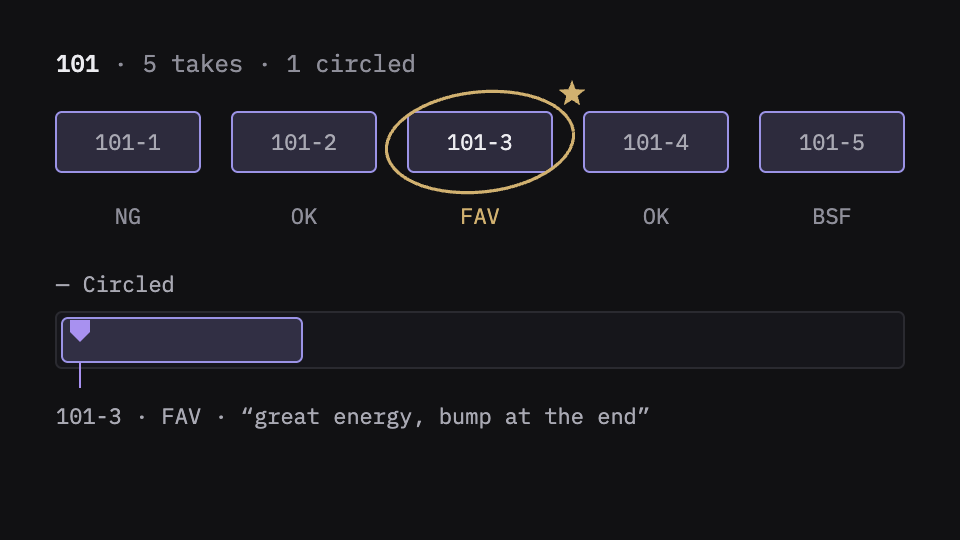
- The editor log: every take by slate, with a grade like NG, OK or FAV, and notes.
- The lined script: which slate covers which line.
- The circled takes: the ones the director wanted marked, often with a note on why.
Read it before you choose anything. You don’t have to agree with it, but you should know it, because someone in the review will.
Line up the takes by slate and by line
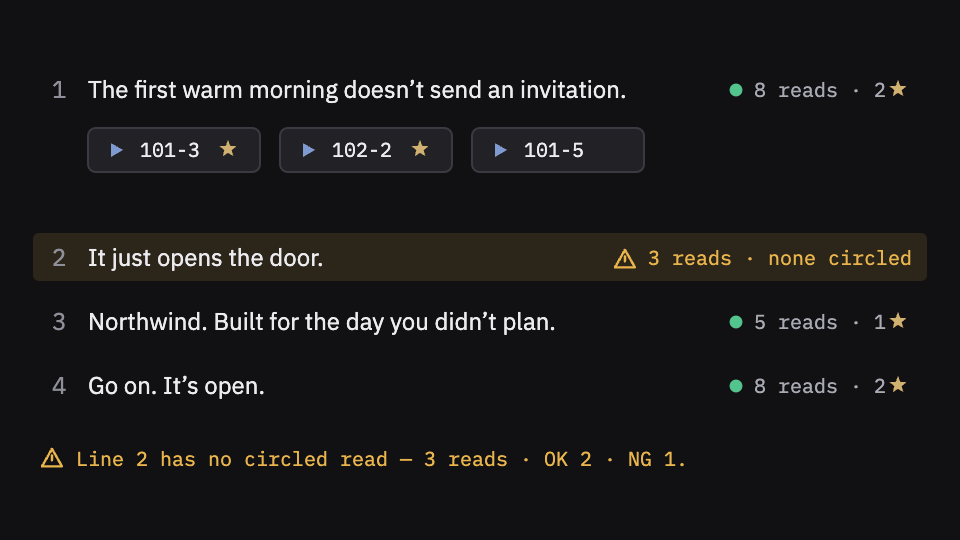
By hand, that means naming every clip by slate and take, putting the circled ones in their own bin, carrying the supervisor’s note onto each one, and building a stringout per line so every read of it sits back to back. Then check the lined script against what you have: a line with only one usable read is something to know on day one, not at the review.
What Rushes does here
Drop the script supervisor’s folder beside the footage and Rushes reads it: the editor log with its grades, the lined script, and the SilverStack log for circled takes and timecode. Every take is found by slate and gets its tier, and every circle the supervisor drew is honored. The circled takes open in their own bin, each marker carrying the tier and the note. The script report answers “what covers line 3”: the script with the shoot laid over it, thin lines flagged, a play button on every take. And the reads are cut to the words in a performance stringout, from whichever recorder channel actually hears them.
Open your NLE with the script already in it
The goal is a project where the script is the organizing idea: a bin for the spot, with every take, the circled takes, the performances cut to the words, and the lines, so you can answer “show me the other reads of that line” in seconds.
What Rushes does here
Rushes exports a scripts bin to Premiere Pro, Final Cut Pro or DaVinci Resolve with the takes, the circled takes, the performance stringouts and the lines, each marker carrying the tier and the note. A scripted project’s analysis runs on your Mac and sends nothing to the cloud.
What Rushes reads. Scripts as Word, plain text or Markdown, including two-column AV scripts, and a ScriptE delivery folder with its lined script, editor log and SilverStack log. Rushes reads English scripts; Final Draft, Fountain and a PDF script on its own aren’t supported yet.
What stays yours
FAV is a tier. Circled is the supervisor’s call. Rushes never picks the best take; it makes sure you know which ones the room picked, so when you choose a different one, it’s a choice and not a surprise.
Try it on your own footage
Rushes is free to try: drop your footage and the supervisor’s folder, sync and verify every angle, and see the script report, no card required. You pay when you export to your NLE.