Sync
How to sync cameras with no timecode.
Sync them by sound. Every camera records some audio, so you match each one’s waveform to a reference recording and line them up. Then check every placement by ear before you cut, because sound-matched sync can look right and still be a frame or two off, and you won’t know until you’re deep in the edit.
A client once asked me to shoot and edit a weekly series of episodes for their own client. The budget covered the editing, not a shoot as well, and I told them so. They came back with: what if I shoot it all on two iPhones? It was weekly work at my editing rate, so I said yes. I coached him on camera placement and audio as best I could, and every week a batch of files from two iPhones arrived. I was cutting in Premiere, and syncing looked fine, until I got into the edit and found some of those syncs were off. Neither phone had timecode, and the audio on both wasn’t great. Toward the end he added a third iPhone as an audio recorder. And for some reason, one of the phones had no audio at all. After a lot of work, we made it work. I built Rushes so a pile of phone clips gets checked the moment it lands, not when I’m halfway into the cut.
Give yourself a chance at the shoot
If you’re shooting it, or coaching whoever is, a few habits make sound sync work:
- Clap on camera at the start of every take, where every device can hear it. It gives every waveform the same sharp peak.
- Put one recorder close to the person talking. A phone in a pocket or on the table beats a camera across the room, and it’s the track you’ll want to transcribe from anyway.
- Make sure every camera records sound, even if you’ll never use it. A camera with no audio and no timecode leaves nothing to sync with, for any tool.
- Roll longer, stop less. Fewer, longer clips are easier to match than dozens of short starts and stops.
Sync by sound, then check it
Premiere Pro, Final Cut Pro and DaVinci Resolve can all sync clips by their audio. They line the waveforms up and place the clips, but they don’t check their own work. With weak phone audio, a match can land a frame or two off and look perfectly fine on the timeline.
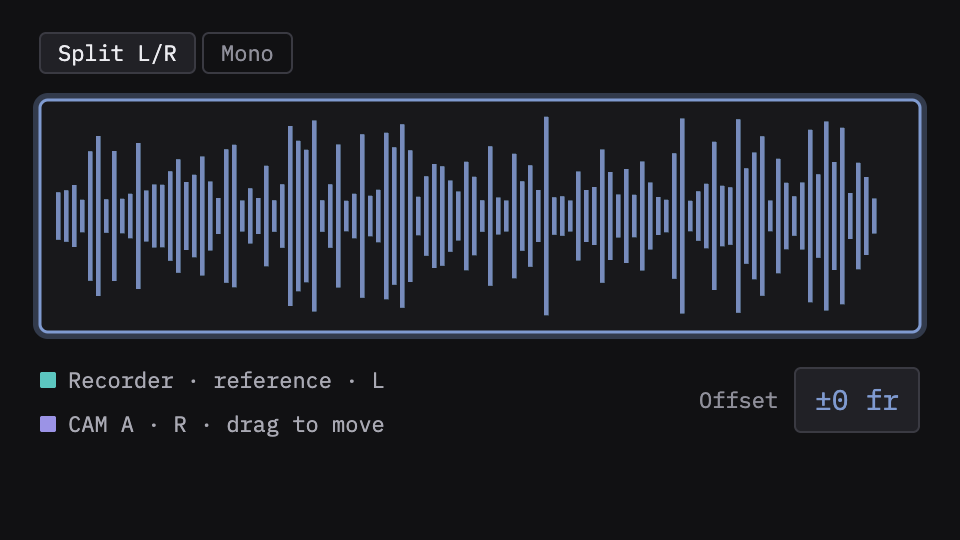
So check it. You don’t need to watch every clip; listen to the ones that look doubtful. Pan the reference to one ear and the camera’s audio to the other: if they’re in sync you hear one voice, and if they’re a couple of frames apart you hear a slap. Nudge until it disappears.
What Rushes does here
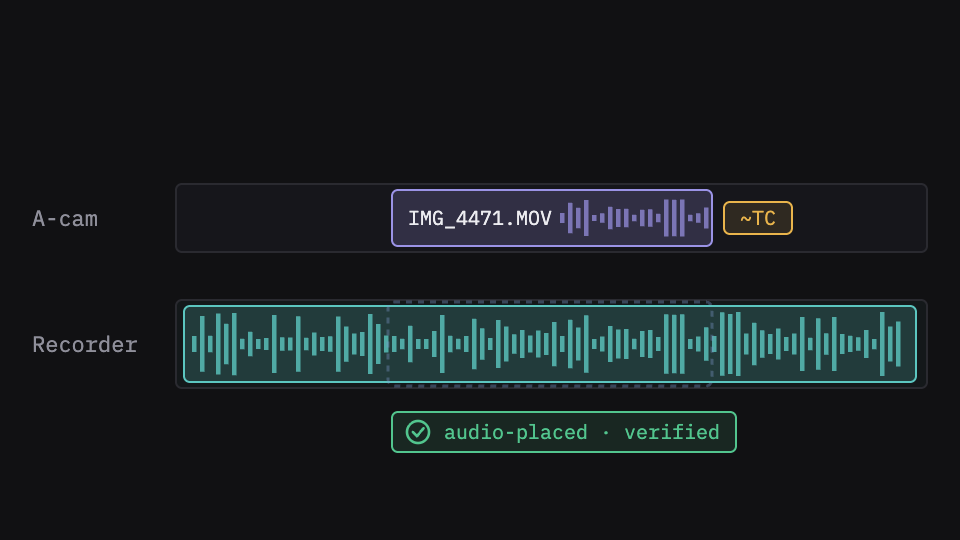
Rushes matches cameras with no timecode by their waveforms, so a phone clip lands where its sound says it belongs. It measures every placement against the audio, and a yellow flag means Rushes has actual doubt, so you listen to the one clip that needs it instead of all of them. The listen tool is built in: split the reference and the clip left and right, and a two-frame error reads as slap; nudge it live, with the picture playing, until it’s gone.
Find out before the edit, not during it
The expensive mistake is the one I made: syncs that looked fine at ingest and turned out to be off once I was cutting. Check sync before you start building, while fixing it is cheap. Watch the angles together for a minute: a camera that’s off shows itself. And once it’s right, transcribe from the recorder, not the phone across the room.
What Rushes does here
Rushes does the sync and the check before you open your NLE. In Watch mode every camera plays live on one clock with a level meter on each tile, so an angle that’s off shows itself. Rushes then transcribes on your Mac from whichever channel actually hears the words, and the sync you approved is the sync your NLE opens, to the frame.
What stays yours
Rushes checks the sync; it never touches the story. Which take, which moment, what follows what: that’s the edit, and it’s yours.
Try it on your own footage
Rushes is free to try: drop your clips, sync and verify every angle, transcribe on your Mac and run the analysis, no card required. You pay when you export to your NLE.